01
A new format.
Same good idea.
Images, videos, audio, and documents. Pick the format you need from a wheel that appears right where you're working.
 orbitly.
Get Orbitly
Convert, resize, and compress. Right at your cursor.
Meet the little Windows app that keeps you in your flow.
All the useful things you do with files.
Without breaking your stride.
Images, videos, audio, and documents. Pick the format you need from a wheel that appears right where you're working.
Resize a photo. Compress a video. Trim a clip. Keep the useful part, and save a new copy alongside your original.
RESIZE / COMPRESS / CROP / TRIMChain operations into a preset. Assign a shortcut. Let a watch folder take care of the files that arrive next.
PRESETS / WORKFLOWS / WATCH FOLDERSNo extra tabs. No upload queue.
Just your files and a familiar gesture.
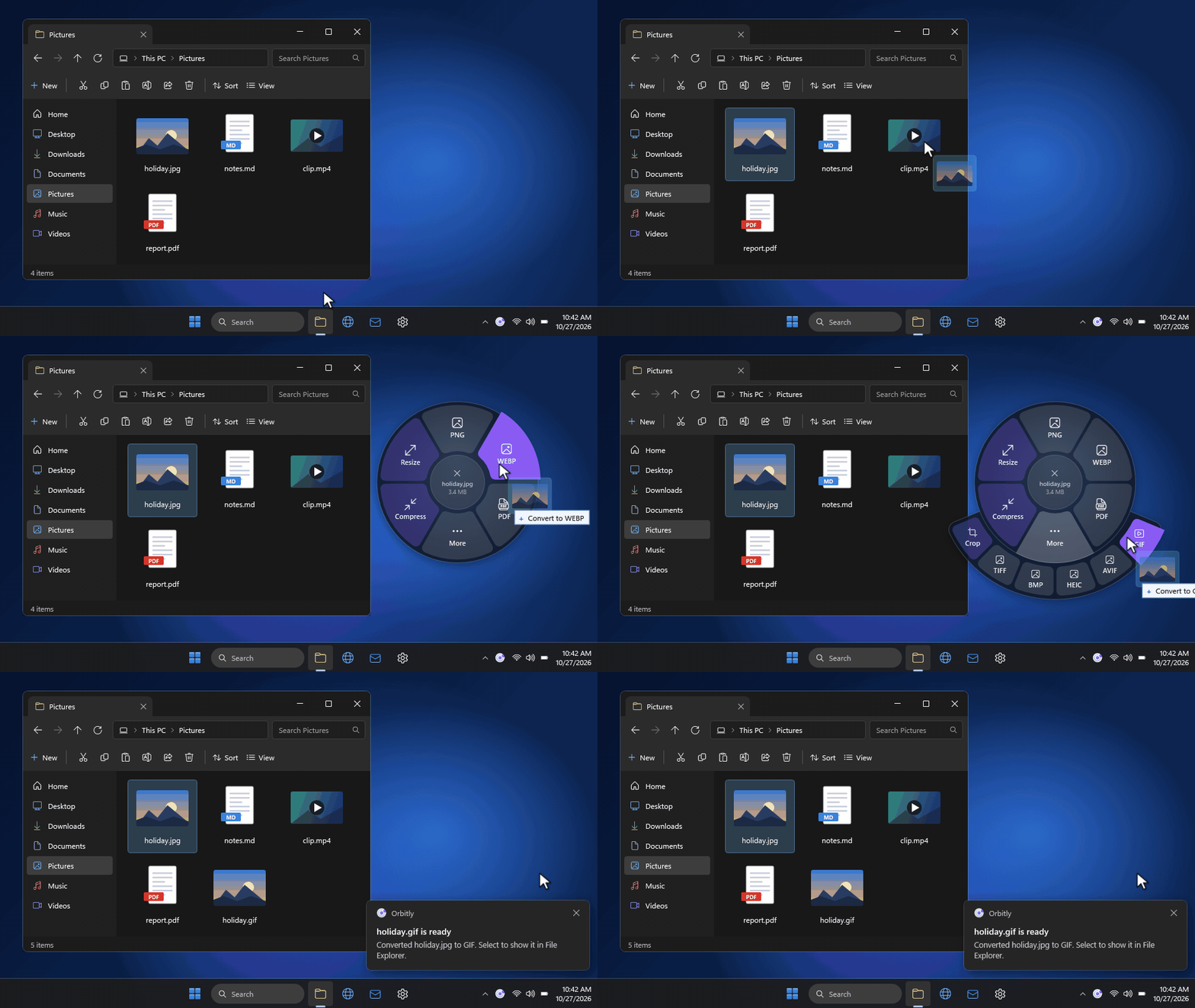
Start dragging a file in File Explorer.
Tap Shift or right-click while dragging.
Let go over a format. Orbitly creates a new copy.
More of a keyboard person?
Open the wheel with selected files.
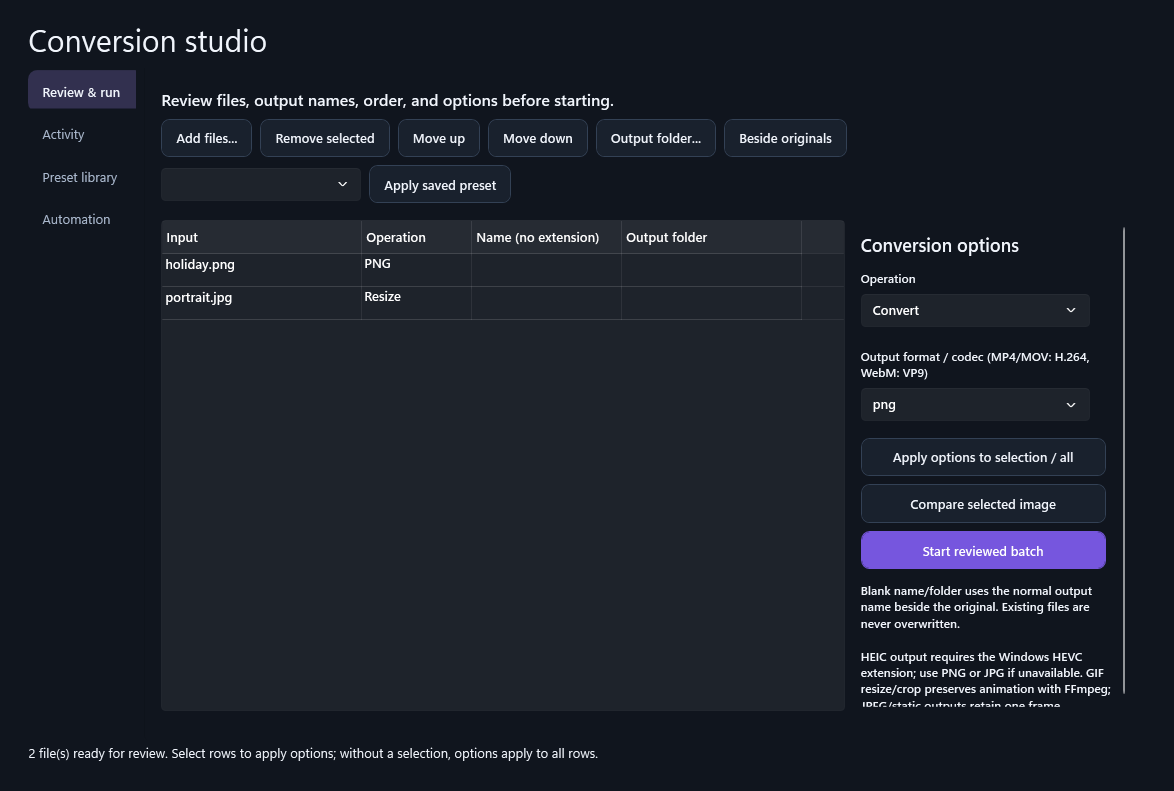
Bring a whole batch into Conversion Studio. Review the names and destinations, compare image results, and keep an eye on every job.
A calmer way to work with your files.
Built for Windows. Made to stay out of the way.
Version 0.6.1 · 64-bit
Installer coming soonUnsigned release. Windows may show an unknown publisher. Verify the SHA-256 below before installing.
The Windows installer is being prepared. A verified download will appear here when the release is published.
Conversions run on your PC. Orbitly doesn't upload your files to a conversion service. Optional update checks contact the release host.
No. Orbitly writes new files and adds a numbered name when an output already exists. You choose whether results live beside the originals or in another folder.
The release targets 64-bit Windows 10 version 22H2 or later and Windows 11. HEIC output needs the Windows HEVC extension. Office document conversions use Microsoft Office when installed.
Yes. Select files and press Ctrl+Alt+C, open Conversion Studio and choose Add files, or use the Explorer integration after installation. Shortcuts are customizable.
Use the download section above for the 0.6.0 Windows installer and its SHA-256 checksum. This first release is unsigned; Windows may display an unknown publisher warning.